AppleID? At work?
A LaunchAgent-driven Consent and Enforcement Model.
Anyone who's worked in an environment with Macs knows that users beg, sometimes demand, to be able to use messages with their personal AppleID. Sometimes it's someone important, and it's even worse if your users aren't used to device management. This tool is used to present an iCloud usage agreement to the user that is multi-user, reliable, auditable, and self-healing. The user is not able tamper with the files used, and it runs for each user. The app is somewhat customizable, and it should work with other MDMs with varying levels of modification. I am presenting this using Jamf Pro.
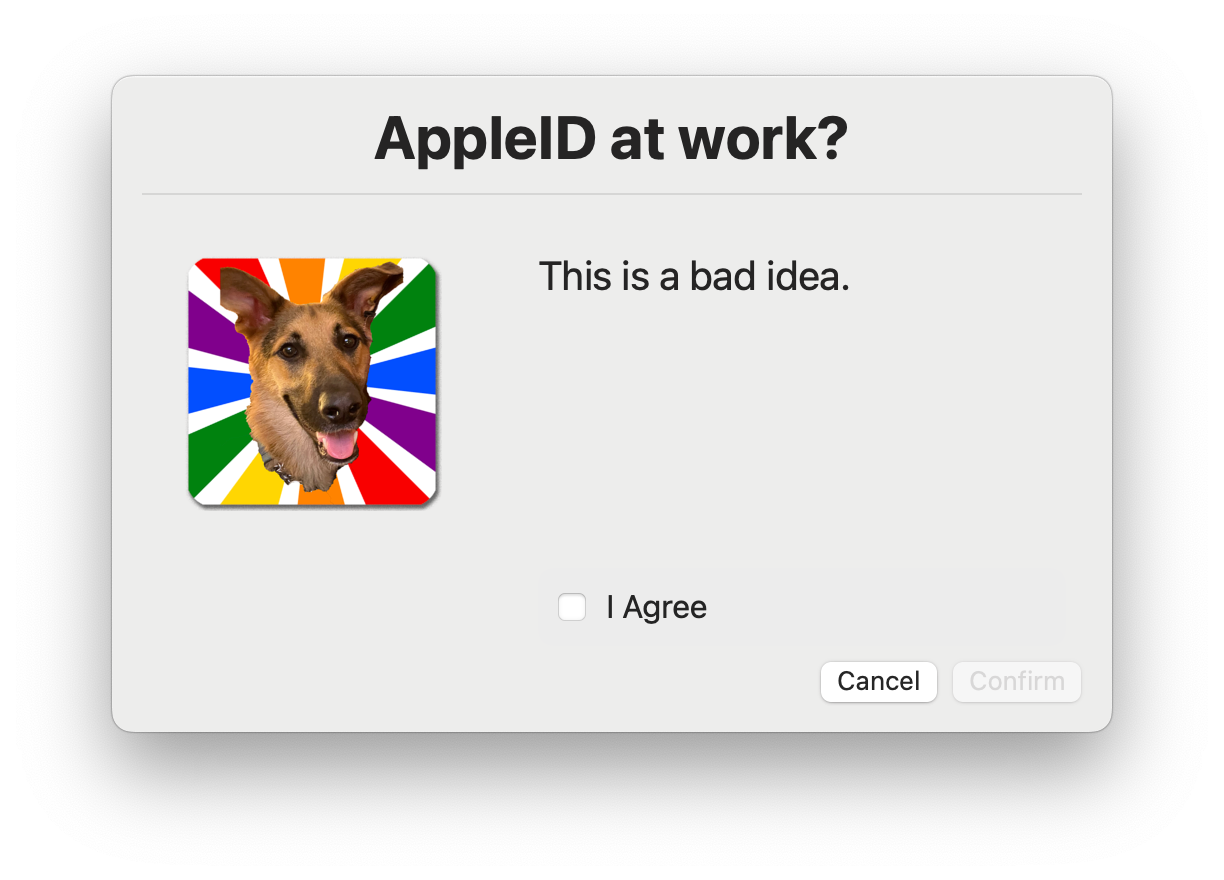
The idea: Wait for the user to invoke approved things that require an AppleID, then present them with a disclaimer that unlocks the AppleID preference pane.
This worked itself into:
LaunchAgent
   ↓
Watcher Script
   ↓
Dialog & plist creation
   ↓
plist read by Extension Attribute
   ↓
Restriction profile change via Smart Group
Components
The Launch Agent
Since we're polling whether or not a user's app is open, we can't run a system wide daemon. A launch agent, running as the user, will do pretty much everything we need it to.
This goes in /Library/LaunchAgents. It would work the same if we put it in ~/Library/LaunchAgents, however, we need this to work for all users. It must be root:wheel with 644 permissions. This will be handled by a bootstrap script later, but for local testing, go ahead and use chmod and chown.
<?xml version="1.0" encoding="UTF-8"?>
<!DOCTYPE plist PUBLIC "-//Apple//DTD PLIST 1.0//EN" "http://www.apple.com/DTDs/PropertyList-1.0.dtd">
<plist version="1.0">
<dict>
    <key>Label</key>
    <string>com.YourOrg.messages-watcher</string>

    <key>ProgramArguments</key>
    <array>
        <string>/usr/local/scripts/messages-watcher.sh</string>
    </array>

    <key>StartInterval</key>
    <integer>5</integer>

    <key>RunAtLoad</key>
    <true/>
</dict>
</plist>
If the xml isn't exactly right, it won't work.
The Launch Daemon
This step is optional, but it helps reduce the state mismatch between the Mac and Jamf immediately after the dialog is presented. What complicates this is jamf recon must be run as root, and our LaunchAgent scrips run in the user space. We can get around that by invoking a LaunchDaemon whenever messages-wavier.sh exits.
The launch daemon goes in /Library/LaunchDaemons and, just like the launch agent, must be root:wheel and 644 permissions.
<?xml version="1.0" encoding="UTF-8"?>
<!DOCTYPE plist PUBLIC "-//Apple//DTD PLIST 1.0//EN"
"http://www.apple.com/DTDs/PropertyList-1.0.dtd">
<plist version="1.0">
<dict>
    <key>Label</key>
    <string>com.YourOrg.inventory</string>

    <key>ProgramArguments</key>
    <array>
        <string>/usr/local/bin/jamf</string>
        <string>recon</string>
    </array>

    <key>RunAtLoad</key>
    <false/>

    <key>KeepAlive</key>
    <false/>
</dict>
</plist>
All this does is run inventory. To run this in a script, use/bin/launchctl kickstart -k system/com.YourOrg.inventory
The Watcher
We wanted this action to be automatic and not advertised to the users. Remember, we don't want users to do this. This uses pgrep to check if a select app is running. This example checks if messages is open, then if a plist exists, then if it has a specified key.
If any one of those conditions is false, messages-waiver.sh is invoked.
#!/bin/bash
## Created by Andy 2026
#################
### Variables ###
#################
pathtoScript="/usr/local/scripts/messages-waiver.sh"

currentUser=$(stat -f %Su /dev/console)

PLIST="/Users/$currentUser/Library/Application Support/YourOrg/consent.plist"

### when troubleshooting the launch agent, enable this line ###
#echo "$(date): watcher ran" >> /Users/$currentUser/messages-watcher.log


#################
#### Watcher ####
#################
#Check if Messages.app is running
#This can be done for any app, but starting with Tahoe, you CANNOT poll system settings panes.
if pgrep -x "Messages" >/dev/null; then

    #if plist does NOT exist → run script
    if [[ ! -f "$PLIST" ]]; then
        /bin/bash $pathtoScript
        exit 0
    fi

    #if plist exists, check if it's valid
    if plutil -lint "$PLIST" >/dev/null 2>&1; then

        # Extract the boolean value for "consent"
        VALUE=$(/usr/libexec/PlistBuddy -c "Print :consent" "$PLIST" 2>/dev/null)


        # If consent != true → run script
        if [[ "$VALUE" != "true" ]]; then
            /bin/bash $pathtoScript
        fi
    else
        # plist exists but is corrupted → treat as "no consent"
        /bin/bash $pathtoScript
    fi
fi
For the launch agent to run this, we need to make the script executable. In the full implementation, we'll have a bootstrap script that ensures this. Until then, give it a quick chmod +x.
Wouldn't it be better if the dialog presents when the user goes to the AppleID preference pane? Yes, but it adds some complications. Pgrep isn't able to look into specific panes, just that System Settings is open. Apple Script can, but is absolutely the wrong tool to be running so often. In theory, we could take a hybrid approach where the Apple Script only runs if System Settings is open. I have not tested this yet, but it's an interesting idea. It would look something like
if pgrep -f "com.apple.systempreferences" >/dev/null; then
    if osascript -e 'tell application "System Settings" to get the name of every window' | grep -q "Apple ID"; then
        echo "Apple ID pane is open"
    fi
fi
Spoiler: This doesn't work
The Waiver
Here's the fun part. This is responsible for the dialog, made with swiftDialog, and creates the plist that records that the user accepted the terms.
If you have not implemented swiftDialog in your instance, I highly recommend checking the swiftDialog Documentation. It's a really powerful tool for presenting messages to the user or requesting input from them.
You can install it via .pkg or installomator. If you wanted to be more thorough, you could add a function that checks and installs swiftDialog.
#!/bin/bash
## Created by Andy 2026

### Get console owner ###
currentUser=$(stat -f %Su /dev/console)

#################
### Variables ###
#################

messageText="Don't mix personal and work."

pathtoIcon="https://swiftdialog.app/basic-use/icon/"

AppleIDWaiverFile="/Users/$currentUser/Library/Application Support/Your Org/consent.plist"

#################
### Functions ###
#################

### Run if the user checked the box ###
writeConsentFile() {

    ### Create directory if needed ###
    mkdir -p "$(dirname "$AppleIDWaiverFile")"

    ### Create empty plist if missing ###
    if [ ! -f "$AppleIDWaiverFile" ]; then
        /usr/libexec/PlistBuddy -c "Save" "$AppleIDWaiverFile"
    fi

    ### Write consent=true ###
    /usr/libexec/PlistBuddy -c "Delete :consent" "$AppleIDWaiverFile" 2>/dev/null
    /usr/libexec/PlistBuddy -c "Add :consent bool true" "$AppleIDWaiverFile"

    ### Write timestamp ###
    /usr/libexec/PlistBuddy -c "Delete :timestamp" "$AppleIDWaiverFile" 2>/dev/null
    /usr/libexec/PlistBuddy -c "Add :timestamp string $(date -u +"%Y-%m-%dT%H:%M:%SZ")" "$AppleIDWaiverFile"

    ### Write username ###
    /usr/libexec/PlistBuddy -c "Delete :icloudUser" "$AppleIDWaiverFile" 2>/dev/null
    /usr/libexec/PlistBuddy -c "Add :icloudUser string $currentUser" "$AppleIDWaiverFile"


}

#################
#### DIALOGS ####
#################

dialogPath="/usr/local/bin/dialog"

waiverPrompt=$("$dialogPath" \
    --title "AppleID? At work?" \
    --ontop \
    --message "$messageText" \
    --checkbox "I Agree",enableButton1 \
    --id "consent" \
    --button1text "Confirm" \
    --button1disabled \
    --button2text "Cancel" \
    --icon "$pathtoIcon"
)

### Did the user check the box? ###
exitCode=$?
echo "$exitCode"

if [ $exitCode == 0 ]; then
    writeConsentFile

    /bin/launchctl kickstart -k system/com.YourOrg.inventory
else
    pkill -x Messages
    /bin/launchctl kickstart -k system/com.YourOrg.inventory
fi
Advanced implementations of swiftDialog can seem like magic, but this one's pretty simple. It's all one line calling /usr/local/bin/dialog with lots of options. If you have more to say, you can nest them and add some logic by calling different dialog functions. Take care adding lines, if you forget a line break, it breaks.
If you don't like terrorizing your users, you could add --moveable. On the other hand, you could add --fullscreen --quitkey 1 , which remaps ⌘-q to ⌘-1, and exits with a unique code.
The Jamf Side
Bootstrap & Deployment Package
Here we begin the part of the MDM setup, and where the model is most likely to break. If you have things working locally, but it fails to run the agents/daemons, check the bootstrap script and permissions.
With Jamf Composer or similar app, make the packages by dragging messages-*.sh and the LaunchAgent from where you want them to unpack. Add those to a new policy in Jamf Pro. We want to set it to root:wheel and 555. This is read/write/execute for root, and read/execute for the user.
#!/bin/bash
## Created by Andy 2026

###################
#### Variables ####
###################
currentUser=$(stat -f %Su /dev/console)
currentUID=$(id -u "$currentUser" 2>/dev/null)
plist="/Library/LaunchAgents/com.YourOrg.messages-watcher.plist"
daemonPlist="/Library/LaunchDaemons/com.YourOrg.inventory.plist"
scriptWaiver="/usr/local/scripts/messages-waiver.sh"
scriptWatcher="/usr/local/scripts/messages-watcher.sh"


# Validate logged-in user

if [[ -z "$currentUser" || "$currentUser" == "root" ]]; then
    echo "No logged-in user. Exiting."
    exit 0
fi


# Check that the LaunchAgent exists

if [[ ! -f "$plist" ]]; then
    echo "LaunchAgent not found at $plist"
    exit 1
fi


# Permissions

chown root:wheel "$plist"
chmod 644 "$plist"

chmod 555 "$scriptWaiver"
chmod 555 "$scriptWatcher"


# Load LaunchAgent
launchctl bootout gui/$currentUID "$plist" 2>/dev/null
launchctl bootstrap gui/$currentUID "$plist"

# LaunchDaemon (optional section)
chown root:wheel "$daemonPlist"
chmod 644 "$daemonPlist"

launchctl bootout system "$daemonPlist" 2>/dev/null
launchctl bootstrap system "$daemonPlist"

echo "LaunchAgents loaded for user: $currentUser (UID: $currentUID)"
exit 0
Note that loading the Launch Agent must be done by the user, and the Launch Daemon must be done by root.
The Extension Attribute
In Jamf Pro, go to settings-->extension attributes. Set both data type and input type to string
#!/bin/bash

currentUser=$(stat -f %Su /dev/console)
plist="/Users/$currentUser/Library/Application Support/Your Org/consent.plist"

if [[ -f "$plist" ]]; then
    consent=$(/usr/bin/defaults read "$plist" consent 2>/dev/null)
    timestamp=$(/usr/bin/defaults read "$plist" timestamp 2>/dev/null)
    icloudUser=$(/usr/bin/defaults read "$plist" icloudUser 2>/dev/null)

    echo "<result>consent=$consent; timestamp=$timestamp; user=$icloudUser</result>"
else
    echo "<result>No consent file found</result>"
fi
You should see something like this:
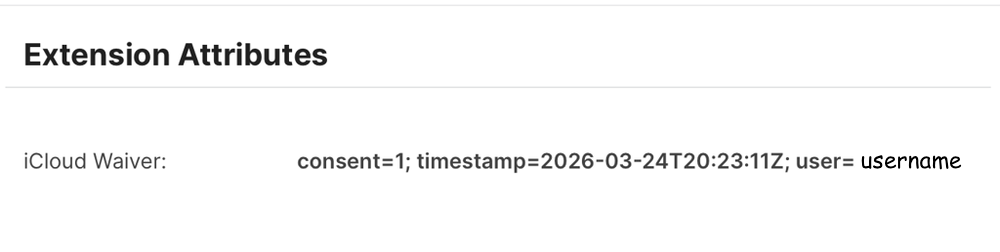
From here, it's pretty simple Jamf stuff.
Create Smart Group
In Jamf Pro, create a smart group called whatever you like.
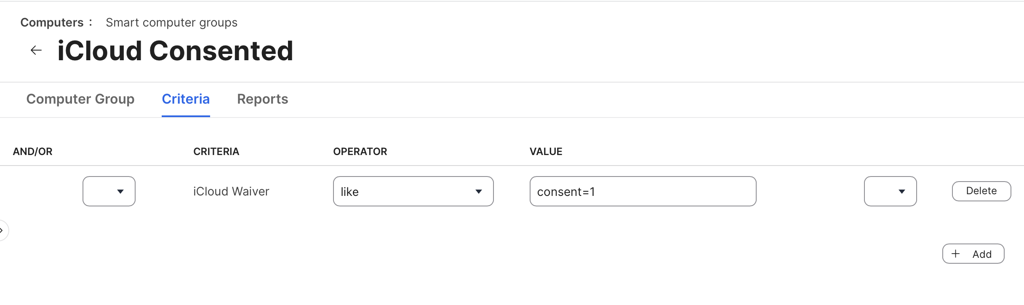
Creating the Policy
The policy needs to do 2 things in the correct order:
- Deploy the script packages
- run bootstrap.sh (choose “After”)
Then choose run at login and run once per computer. If you need to update the script, be sure to flush the policy logs for it so it runs again. It will rewrite the files. Alternatively, you could run this more often, since it will just overwrite itself.
Configuration Profiles
In whichever configuration profile contains your restrictions, clone it. On the original configuration, add an exclusion for the smart group you just created. Then on the new one, give it a fancy new name and scope it only to the new group.
The correct key is found in configuration profiles → functionality → Allow Internet Accounts modification in System Settings (macOS 14 or later)
While we're at it, let's create a second config scoped to your smart group. Follow this guide to suppress notifications that messages-watcher.sh can run in the background. We don't want to scare folks.
Caveats & Considerations
- If this is deployed to users already using Messages and signed in with their AppleID, they will still receive the waiver.
- The polling is every 5 seconds. You could shorten it. Yes, technically we could use the
watchPathoption in the launch agent, but we want to minimize false invocations of messages-waiver.sh - There's about 30 seconds by the time Jamf is able to make the configuration swap, but anytime inventory runs and notices
consent.plistis missing, it falls back to requiring the agreement again. - The two services we allow once the user is signed in are Notes and Messages. I chose not to poll Notes since people use it offline, too.